1.5 Skills - Quick start
3 min readUnderstand skills in 3 minutes
A skill is a repeatable way for AI to work. Use one when you want AI to follow the same steps every time, such as reviewing a product page, analyzing competitors, planning content, or checking compliance.
For your first run, keep it simple: find a skill, install it to a role, call it in chat, and check the result.
Step 1: Open Skills
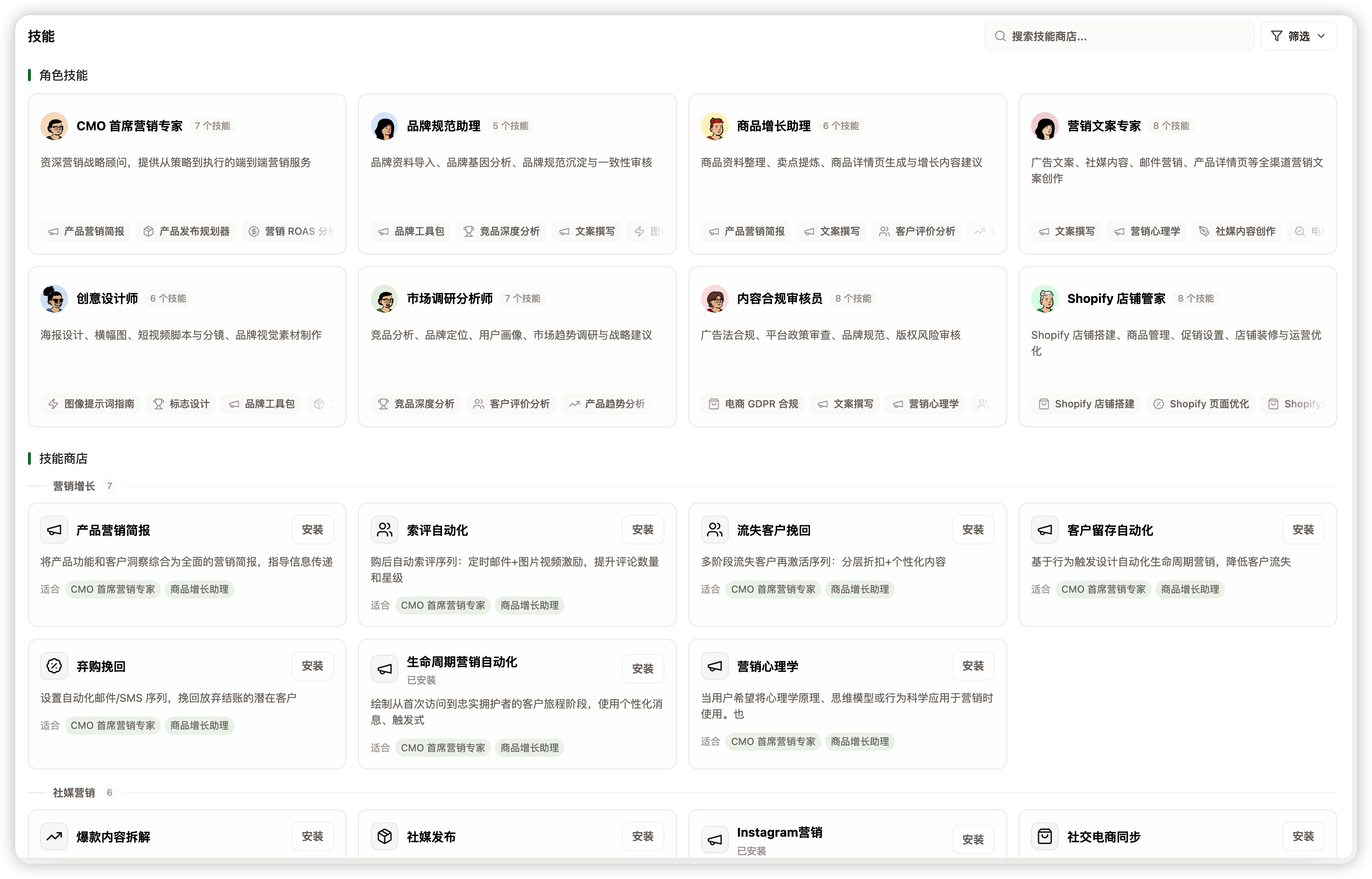
Open Skills from the left navigation. You will usually see two areas:
- Role skills: what each role already knows how to do.
- Skill store: new skills you can discover and install.
Start from the Skill store and choose a skill with an easy-to-review output, such as product page optimization, social content planning, or competitor analysis.
Step 2: Choose one skill
Before installing, ask three quick questions:
- Does it solve the task I need right now?
- Can I provide the information it asks for?
- Will it produce an output I can use directly?
If the answers are clear, install it. Do not install many skills at once. Complete one real small task first.
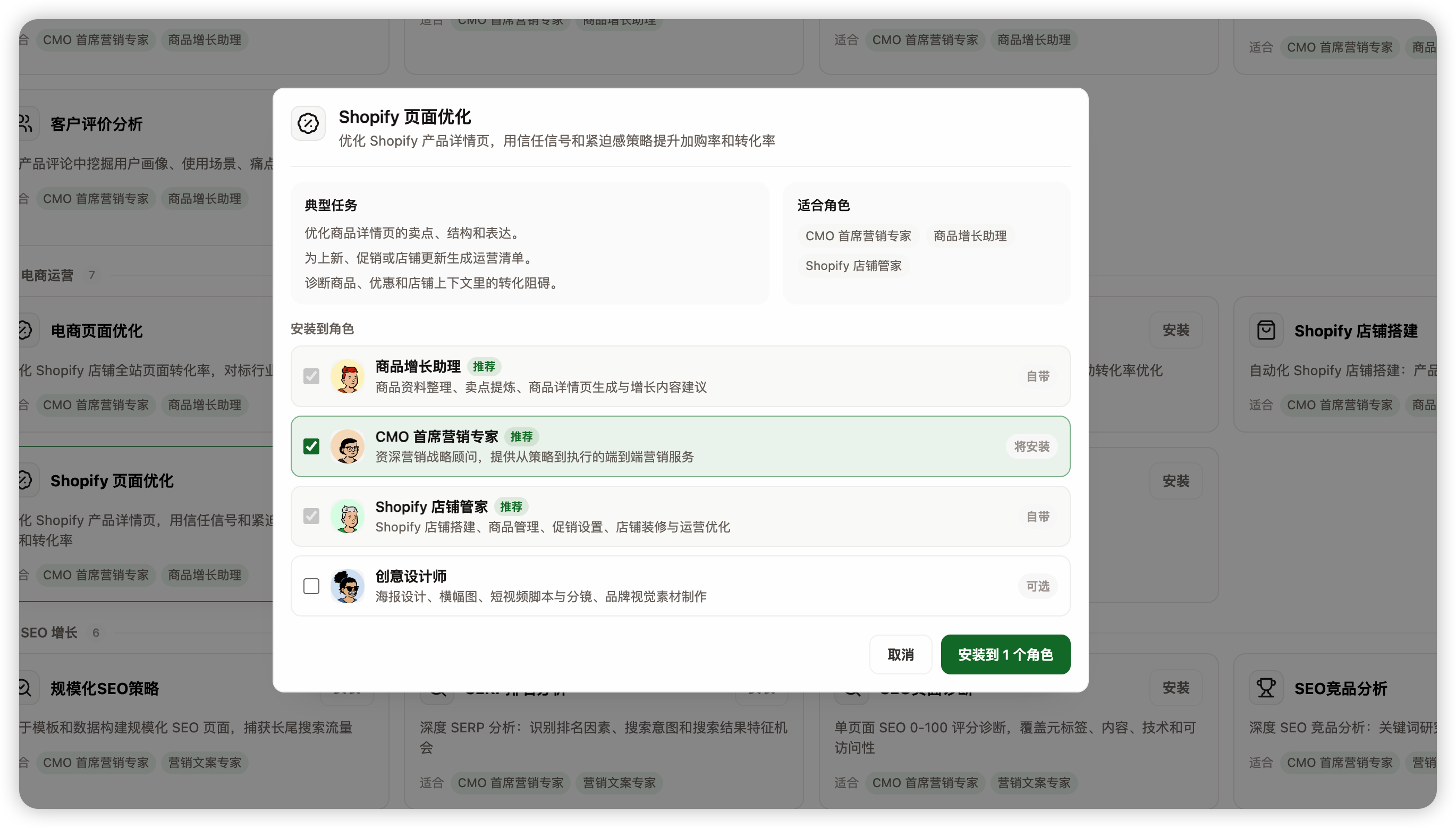
Step 3: Install it to the right role
Skills are installed to roles. A simple rule: install it to the role that will usually do this work.
| Task type | Recommended role |
|---|---|
| Strategy, research, growth | CMO, research, or growth role |
| Copy, social, email | Content or operations role |
| Visuals, assets, brand guidelines | Design role |
| Data, ads, weekly reports | Analyst or operations role |
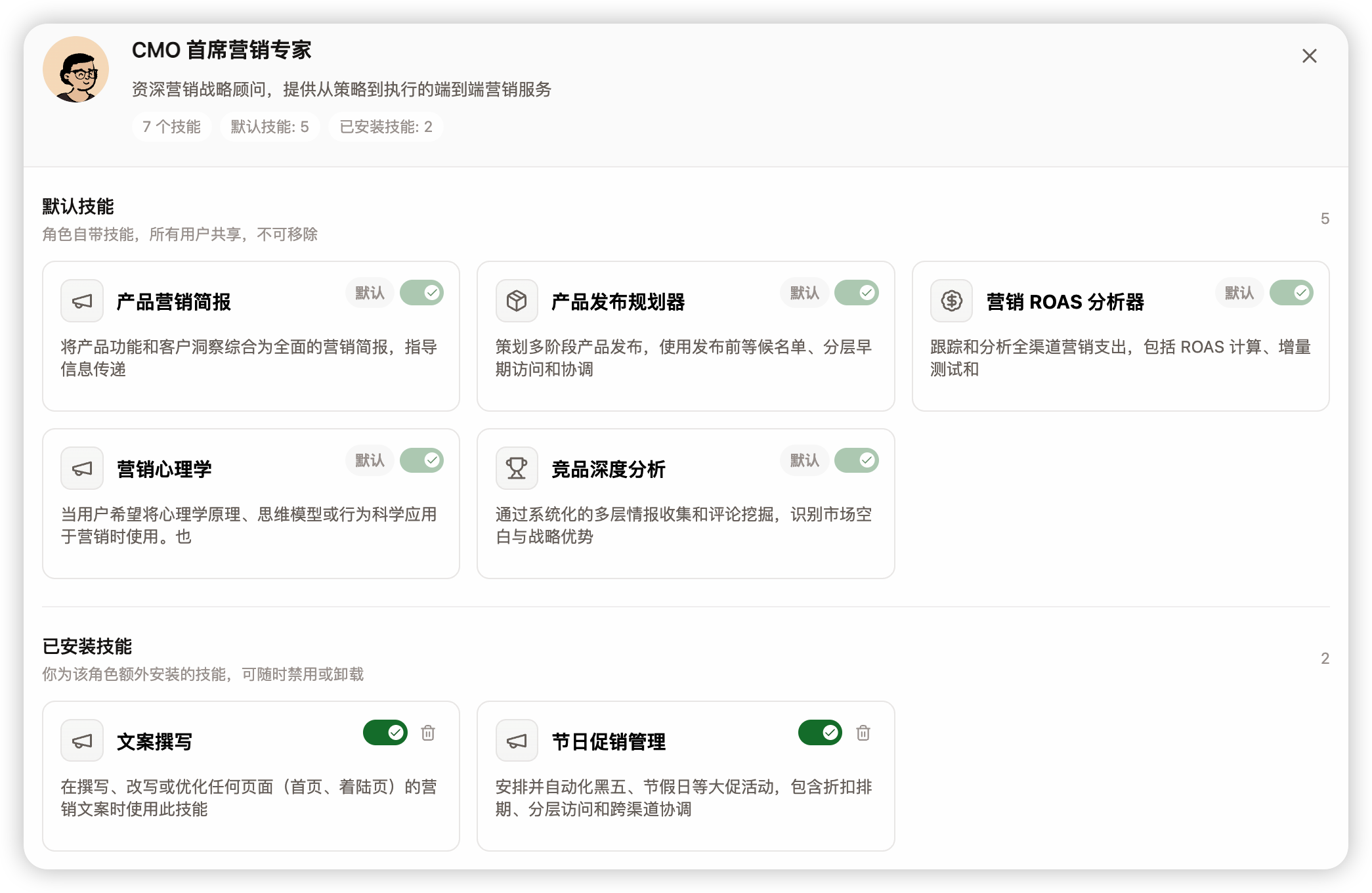
After installation, return to the role skill list and confirm the skill appears under the target role.
Step 4: Use it in chat
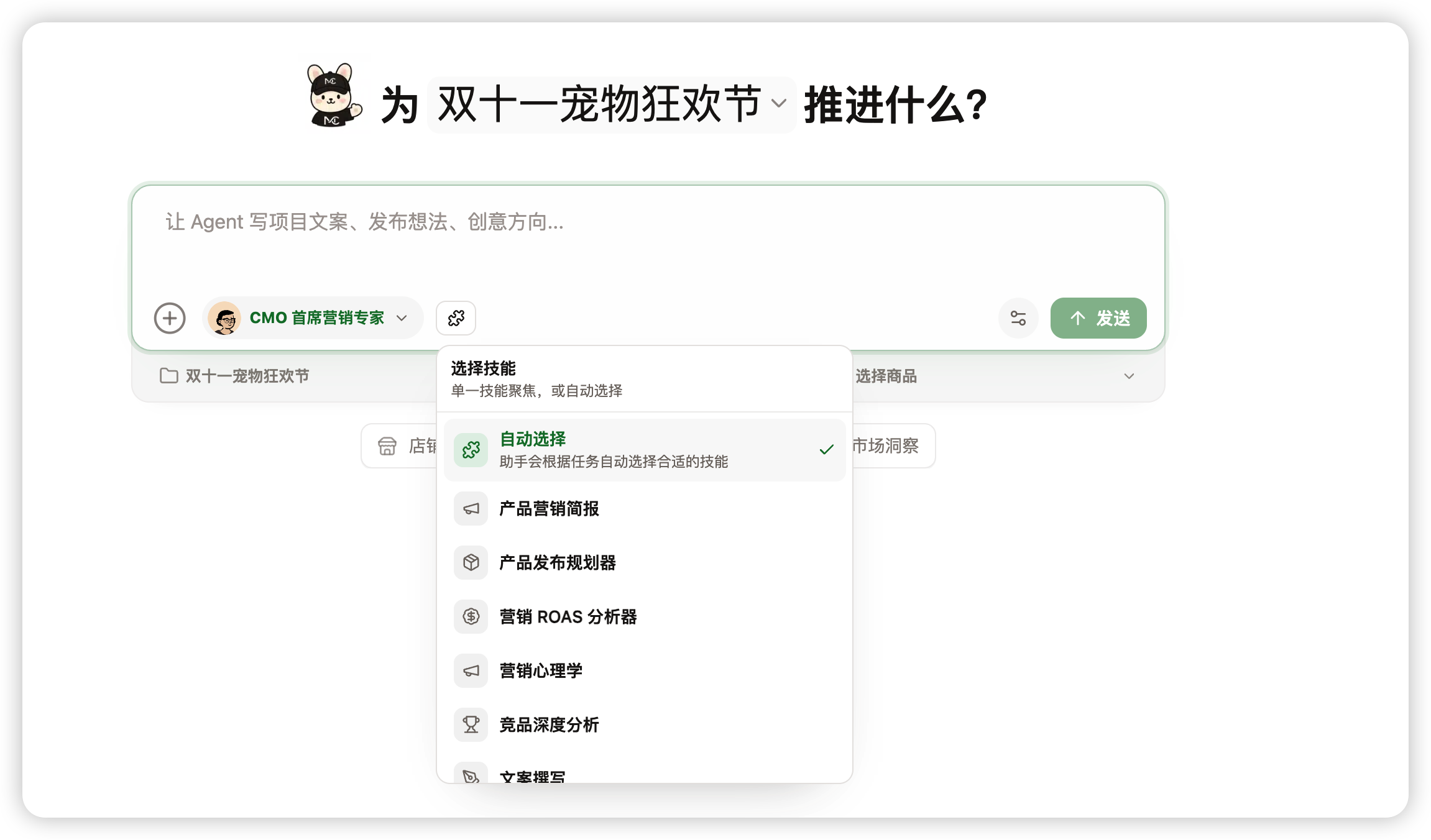
Open chat or a project page and choose the role that received the skill. The first time, write the skill name directly.
You can also open the skill picker below the input box and let the agent choose automatically, or manually select one skill.
Please use the "Product page optimization" skill to review this product page's first-screen structure, core benefits, and conversion risks.
List the review steps first, then give revision suggestions.
If you manually select a skill, the input box shows the current skill name. When you send the task, the agent will prioritize that skill workflow.
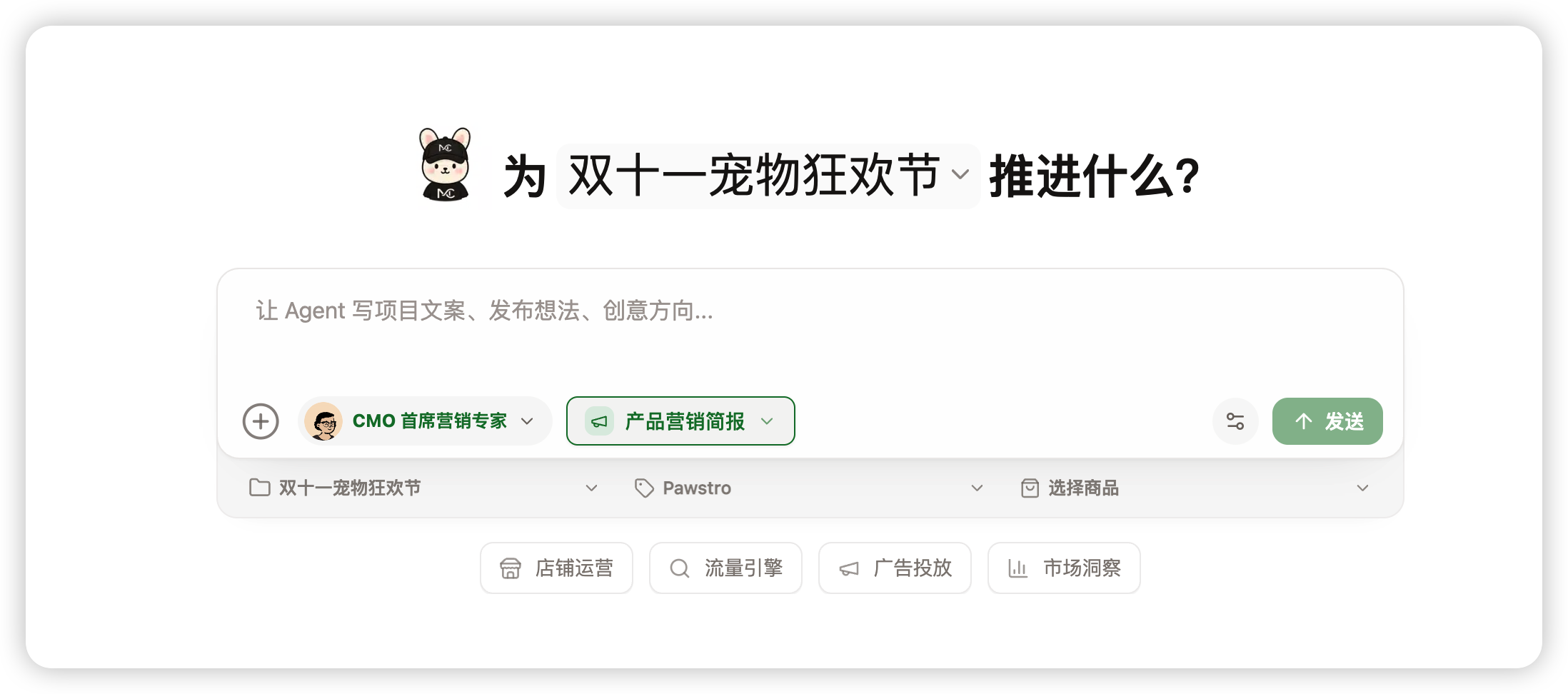
If the task belongs to a brand, product, or project, include that context so the result matches the real business.
Step 5: Check whether it worked
A skill is being used well when:
- The AI explains steps or follows a stable structure.
- The result references your brand, product, project, or files.
- The output is a checklist, table, plan, or draft instead of generic advice.
- Uncertain information is marked as an assumption or missing input.
If the result is too generic, say:
Please redo this using the "Product page optimization" skill workflow. Restate the steps first, then produce the result.
Good first tasks
Start with one of these low-risk tasks:
- Product page optimization: review benefits, first screen, and purchase friction.
- Competitor analysis: summarize three competitors' positioning, pricing, and content strategy.
- Social content plan: create one week of topics and publishing rhythm.
After this loop works, continue with "What are skills", "Skills center", "Install skills", and "Use skills".