1.7 Channels - Quick start
5 min readConnect your first message channel in 5 minutes
A channel is the message bridge between Marcto and team collaboration tools. After connecting one, your team can chat with AI in Feishu and receive automation results, approval reminders, and operations digests.
For the first setup, use a test group. Do not connect a production team group until replies, notifications, and permissions work correctly.
Step 1: Prepare a test space
Before setup, prepare:
- A Feishu test group or test space.
- Admin access to configure a Feishu app.
- App credentials, such as App ID, App Secret, event subscription, or bot settings.
- A default role that will handle messages from this channel.
Do not paste secrets into chat, and do not use a test channel for customer communication.
Step 2: Create the channel
Open Channels, choose Feishu, and create a new channel.
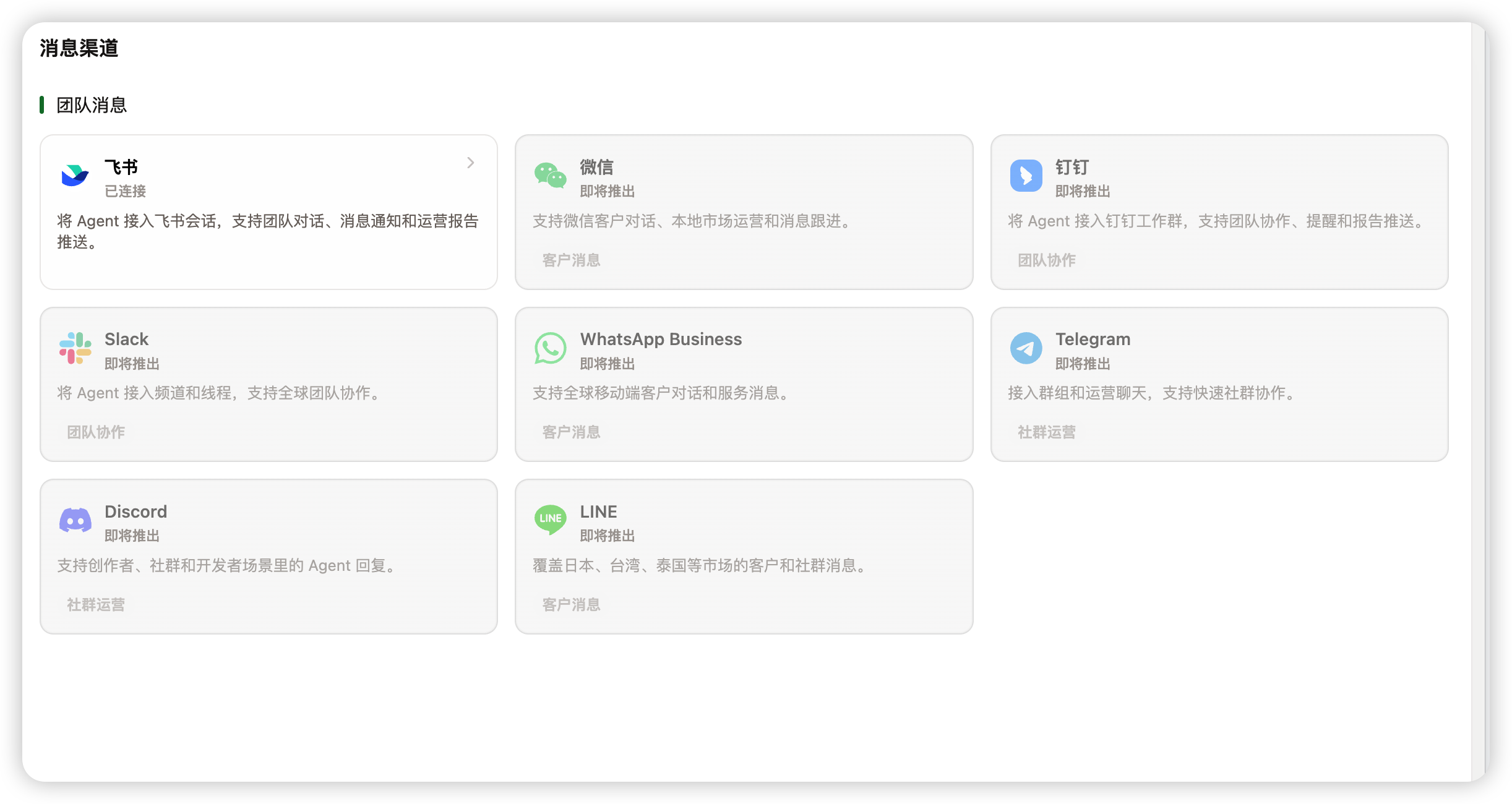
Recommended first settings:
| Setting | Recommendation |
|---|---|
| Channel name | Use a clear name, such as "Feishu test group" |
| Default role | Choose the role that should answer team questions |
| Model | Use the team's stable model |
| Enabled | Enable it for testing after creation |
If the page asks for Feishu app details, enter the App ID, secret, event URL, and related settings in the matching fields.
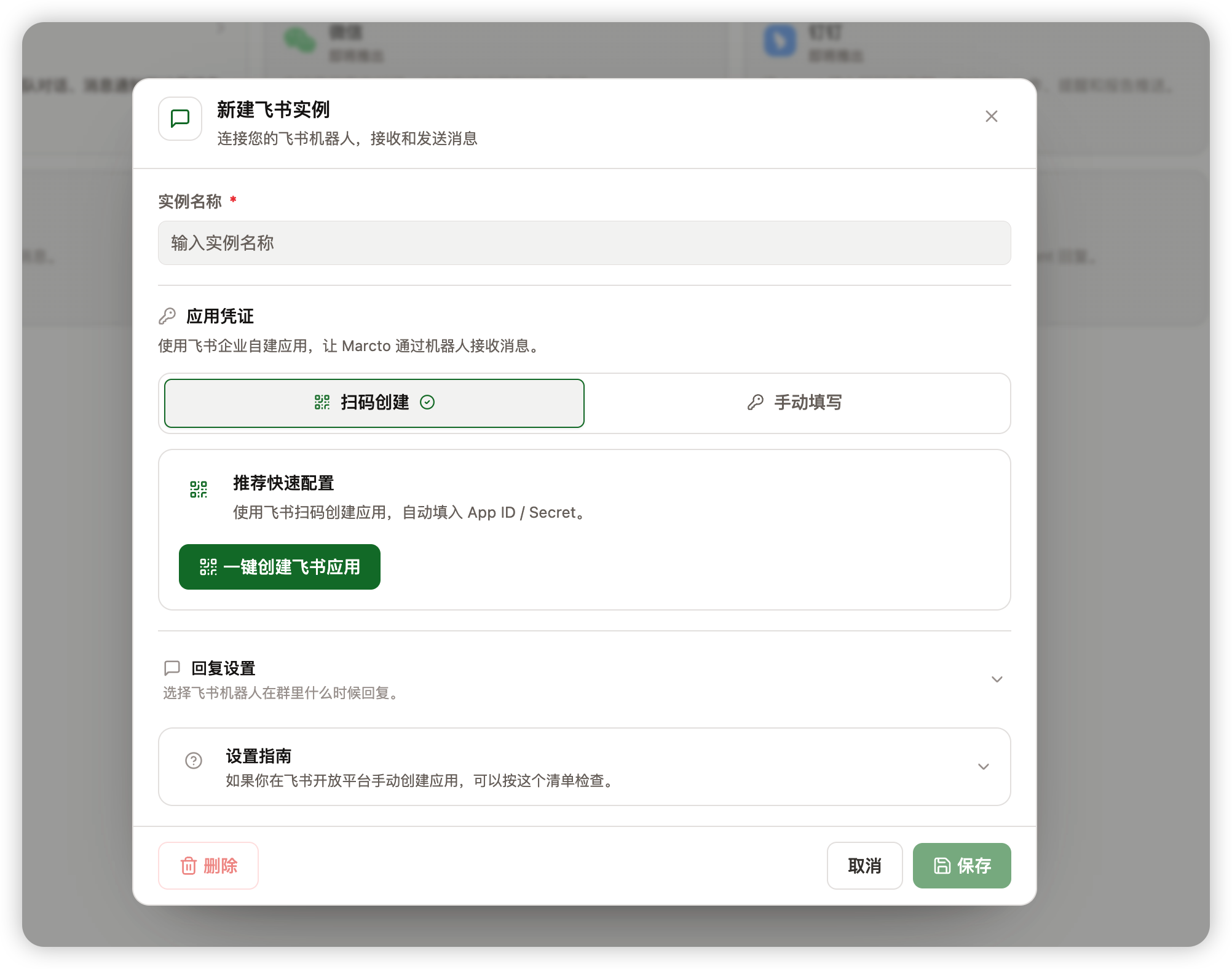
Step 3: Finish Feishu-side setup
In the Feishu developer console or app admin, check:
- The bot or app has joined the test group.
- The event subscription URL is correct.
- Message events, group events, or required permissions are enabled.
- The app is published or available in the test scope.
If Feishu provides a test event or test message tool, use it to verify the connection first.
If you already created an app in the Feishu developer console, switch to manual entry and enter the App ID and App Secret in the matching fields. Do not expose real secrets in docs, chat, or screenshots.
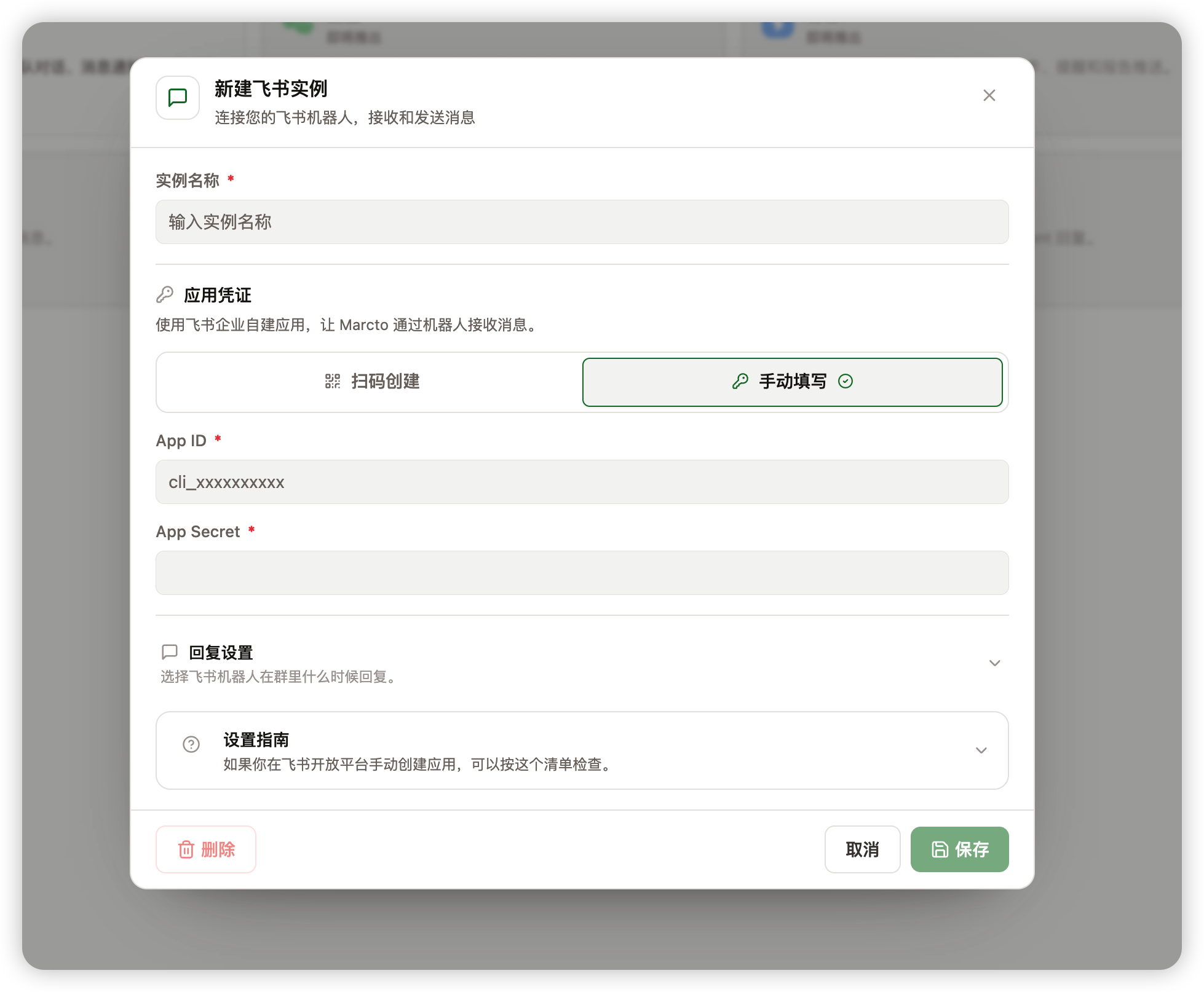
Step 4: Send a test message
In the test group, send:
In one sentence, tell us what you can help with in this group.
Then check:
- Marcto receives the message.
- AI replies with the correct role.
- The reply renders correctly in Feishu.
- No internal runtime names, secrets, or debug details are exposed.
If nothing replies, check whether the channel is enabled, the Feishu app is in the group, and the event URL and permissions are correct.
For the first test, set replies to only respond when mentioned. This keeps the bot quiet unless the team explicitly calls it.
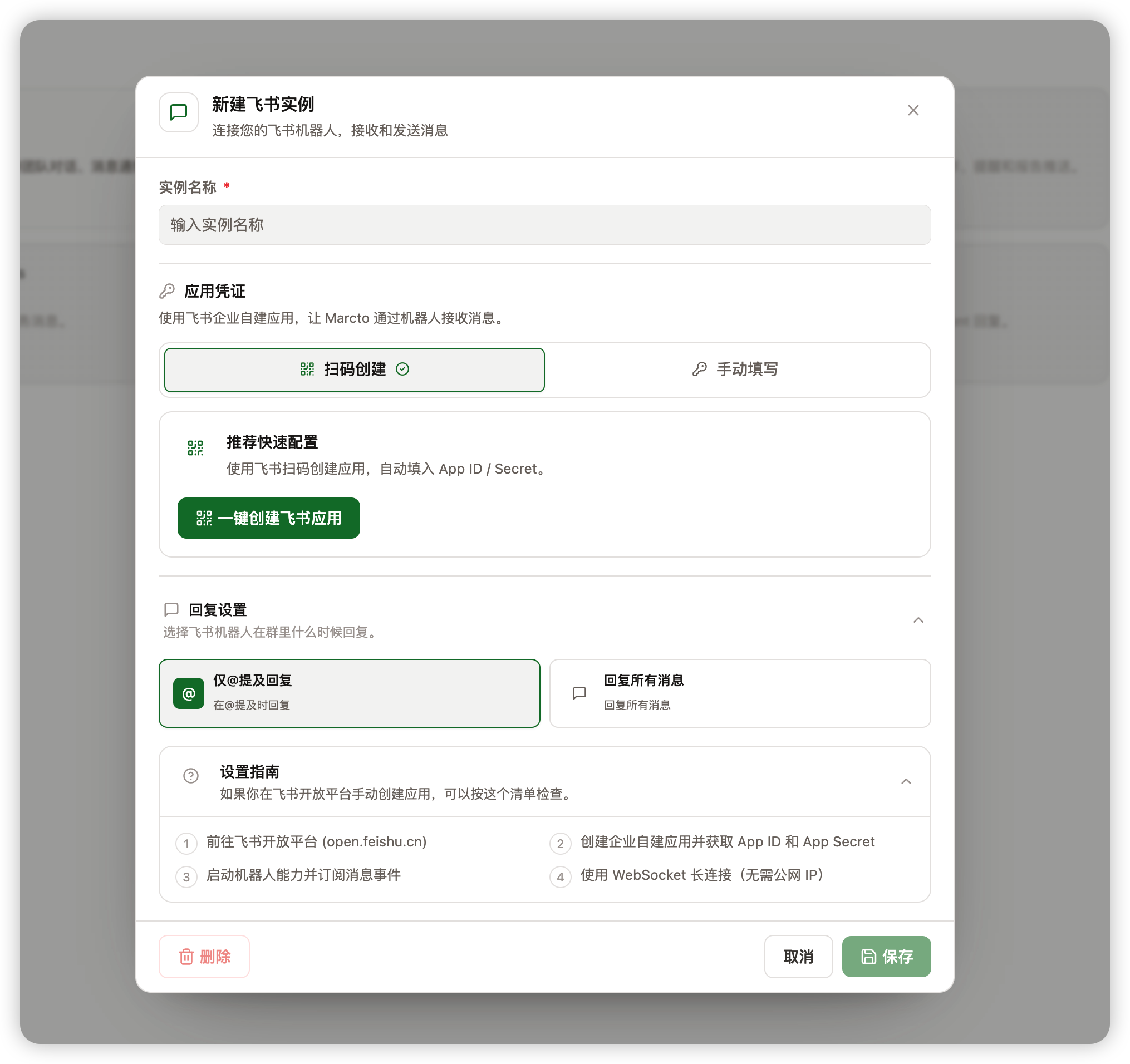
Step 5: Send automation results to the channel
After the channel test passes, send automation results to it.
Start with low-risk notifications:
- Daily ad anomaly summary.
- Weekly content plan.
- Project progress reminder.
- Drafts or approval reminders that require human confirmation.
For outbound messages, customer communication, publishing, or important business changes, generate a draft first and require human confirmation.
Before going live
Before opening the channel to the team, confirm:
- The channel name makes its purpose clear.
- Default role and model are correct.
- A full test conversation has succeeded.
- Automation notifications are not too frequent.
- Important actions have human confirmation boundaries.